SikaiCase
SikaiCase 2.4-Inch Wireless Selfie Monitor for Phone Rear Cameras
SikaiCase 2.4-Inch Wireless Selfie Monitor for Phone Rear Cameras
Verfügbarkeit für Abholungen konnte nicht geladen werden
- Schneller kostenloser Versand
- 30 Tage Rückgaberecht
- 12 Monate Garantie
See your framing. Stay in the moment.
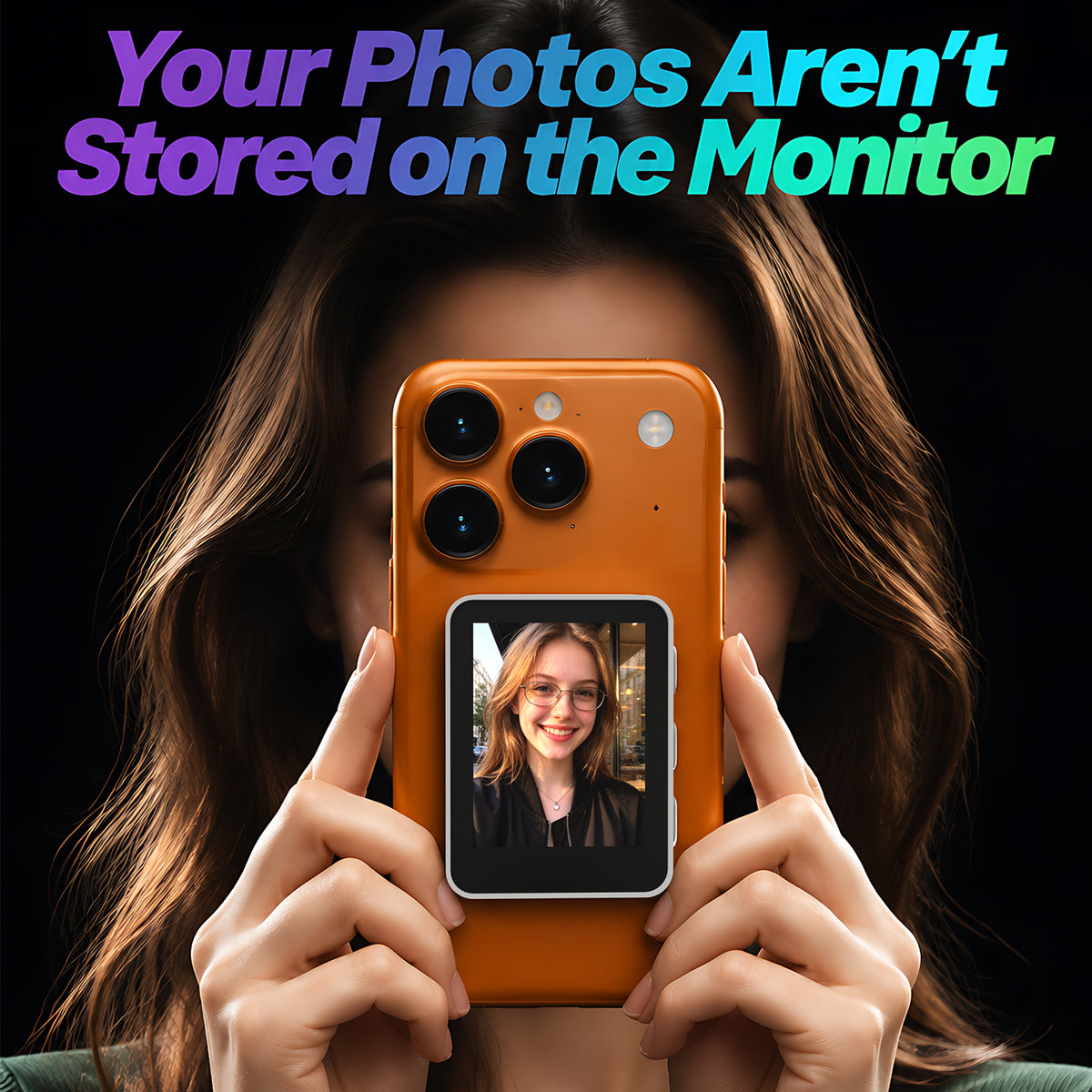
The SikaiCase 2.4-Inch Wireless Selfie Monitor gives you a visible preview when your phone's rear camera faces you. This white D241B magnetic screen helps you check faces, headroom and the background before taking a photo—whether you are traveling alone, gathering friends or recording a short video.
Stop Guessing What Is in the Frame
Rear-camera selfies often mean taking a shot, turning the phone around and trying again. Connect this compact monitor through CommonScope to see your phone's screen from the camera side. Adjust your position, bring everyone into view and capture the moment with more confidence.
Key Benefits
- Visible rear-camera framing: check your composition while looking toward the lens instead of repeatedly turning the phone around.
- 2.4-inch portable display: a compact preview for solo portraits, group photos and everyday video creation.
- Magnetic attachment: mount it to a suitable phone or case using the included ring, or hold the screen separately while the phone is securely supported.
- Physical shutter and zoom controls: use the side buttons on compatible phone/app setups. iPhone zoom requires the accessibility setting described below.
- Wireless screen mirroring: connect through CommonScope with Wi-Fi and Bluetooth; four display modes in the app help adjust the mirrored view.
- USB-C rechargeable: approximately two hours of use as illustrated in supplied product material, with use while charging supported by the manual.

Who Is It For?
| User | Typical situation | Practical value |
|---|---|---|
| Solo travelers | Portraits and holiday memories | See your position without asking someone else to frame the shot. |
| Families and friends | Group selfies and get-togethers | Check that faces are visible before pressing the shutter. |
| Short-video creators | Talking-to-camera clips, outfits and product demonstrations | Monitor headroom and composition while using the phone's rear camera. |
| Everyday phone photographers | Casual portraits at home or outdoors | A compact preview screen that can attach for shooting and pack away afterward. |
Best fit: people who want more control over framing with the phone they already own. Final image quality still depends on the phone's camera, lighting and settings; the monitor does not increase camera resolution.
Compatibility & Before You Buy
- Works with: supported iPhone and Android phones that can install CommonScope and provide the required Wi-Fi, Bluetooth and screen-broadcast functions.
- App required: follow the QR code on the device or the supplied manual. Check app availability for your phone and region before purchase.
- iPhone zoom: enable Settings → Accessibility → Zoom as instructed in the manual; keep Bluetooth connected.
- Mounting: check that your phone or case has a suitable flat attachment area and the monitor will not cover the rear-camera lenses. The included ring assists magnetic attachment.
- Not for: a standalone camera, wired HDMI monitoring, app-free operation or a workflow that requires the phone to stay connected to another Wi-Fi network while mirroring.
- Check third-party apps: preview, shutter and zoom behavior varies by app and operating system. Support for every beauty, livestreaming or camera app is not guaranteed.

Design & Everyday Use
The white body has three physical side controls and a USB-C charging port. Attach the screen for handheld rear-camera selfies or place your phone on a separate stable support and use the monitor nearby. Check attachment strength before releasing your grip. The monitor is not a handle for carrying the phone.
Product Specifications
| Model | D241B |
|---|---|
| Screen size | 2.4 inches |
| Color | White housing with black screen bezel |
| Function | Phone screen mirroring for rear-camera preview |
| Companion app | CommonScope |
| Connection | Wi-Fi screen mirroring with Bluetooth controls; both must remain enabled |
| Controls | Power/shutter, zoom in and zoom out |
| Display adjustment | Four modes in the companion app, per the manual |
| Power | Built-in rechargeable battery; USB-C charging; fast charging not supported |
| Stated runtime | Approximately 2 hours; actual results vary with use and conditions |
| Auto shutoff | The manual specifies shutdown after 5 minutes when left unconnected and unused |
| Mounting | Magnetic attachment with included metal ring |
How to Connect an iPhone
- Charge the monitor and hold its power/shutter button for approximately 3 seconds to turn it on.
- For zoom controls, enable Settings → Accessibility → Zoom. Follow the manual's gesture instructions if the phone screen becomes magnified.
- Install and open CommonScope. Keep Wi-Fi and Bluetooth on and allow the permissions needed for connection and screen broadcasting.
- Tap Start Casting, select the device name matching the monitor's screen (typically CommonScope-xxxx) and accept the prompt to join its Wi-Fi network.
- In Screen Broadcast, select CommonScope and tap Start Broadcast.
- Once the preview appears, open the phone camera, select the rear camera and check the framing. Test the shutter and zoom controls before your shoot.
How to Connect an Android Phone
- Turn on the monitor and install CommonScope through Google Play or the QR code shown on the device, following the supplied manual.
- Enable Wi-Fi and Bluetooth, open the app and follow the required connection and screen-sharing permission prompts.
- Tap Start Casting, choose the matching device and confirm first-time Bluetooth pairing.
- When the phone screen appears on the monitor, choose a display mode and open your camera. Test the rear-camera preview and controls on your phone.

Charging & Care
Charge with the included USB-A to USB-C cable and a suitable standard USB power source. The manual states that the red indicator remains on while charging and switches off when fully charged. Use while charging is supported; fast charging is not. Keep the monitor dry, clean it with a soft cloth and protect it from extreme temperatures, prolonged direct sunlight and impact. Remove it before storing the phone in a tight pocket or bag.
What's Included
- 1 × D241B 2.4-inch white selfie monitor
- 1 × magnetic attachment ring
- 1 × USB-A to USB-C cable
- 1 × user manual
Phone, phone case, tripod, wall charger and lifestyle props are not included.

Important Notes
- The phone uses the monitor's Wi-Fi connection during mirroring and cannot simultaneously connect to another Wi-Fi network, according to the manual.
- A separate phone screen-recording session can conflict with mirroring. Camera video recording is a different function.
- Wireless preview may lag in congested Wi-Fi environments. Move the devices closer if the picture falls behind.
- Zoom control does not add an optical zoom lens or improve the phone camera's hardware. Behavior depends on the phone, settings and app.
- The screen mirrors phone content. Close sensitive content and manage notifications before sharing the preview with others.
Frequently Asked Questions
1. Is this a camera or a monitor?
It is a wireless preview monitor. Your phone captures the photos and videos; the monitor helps you see the composition while facing the rear camera.
2. Which version will I receive?
This listing is for the D241B with a 2.4-inch screen and white housing. The phone and tripod shown in photos are not included.
3. Do I need an app?
Yes. Install CommonScope using the App Store, Google Play or the QR code displayed on the powered-on monitor, as directed by the supplied manual.
4. Does it work with iPhone and Android?
The manual provides setup for iPhone and Android. Your phone must support the companion app and required Wi-Fi, Bluetooth and screen-broadcast permissions. App availability and features can vary by OS version and region; compatibility with every model or third-party camera app is not guaranteed.
5. How do I enable the iPhone zoom buttons?
Follow the manual: Settings → Accessibility → Zoom → On, then make sure Bluetooth is connected. If the phone view becomes magnified, the manual instructs a three-finger triple tap to restore the original view. Zoom behavior depends on the phone and app; this monitor does not add an optical zoom lens.
6. Can I use my normal Wi-Fi network at the same time?
The manual says the phone connects to the monitor's Wi-Fi during use and cannot simultaneously connect to another Wi-Fi device or network. Plan your shooting workflow accordingly.
7. Can I use the phone's screen recorder during mirroring?
The manual warns that a separate screen-recording session can cause a black or frozen preview. Stop that session before mirroring. This is different from recording video through the phone's camera.
8. How do I take a photo?
After connecting and choosing the camera mode, briefly press the power/shutter button to take a photo. The manual also describes starting recording when the phone is in video mode. Test control behavior with your chosen camera app before shooting.
9. Can I detach the monitor and hold it separately?
Yes, you can use it as a nearby handheld preview while the phone is safely supported. Wireless performance depends on distance, obstacles and interference; a fixed transmission range is not promised.
10. How is the monitor attached?
It uses a magnetic mount. The included metal ring provides an attachment point on a suitable phone or case surface. Check clearance around the camera and adhesion before use; a thick, uneven or textured case can affect mounting.
11. How long does the battery last?
The supplied product imagery indicates approximately two hours of use. Actual runtime varies with settings, connection, temperature and battery condition. Charge before longer shoots.
12. Can it be used while charging?
Yes, according to the manual. Use the supplied USB-A to USB-C cable with a suitable standard USB power source. Fast charging is not supported.
13. Why is the preview delayed or disconnected?
Check the battery, keep Wi-Fi and Bluetooth enabled, confirm the selected device and move the phone closer. Nearby Wi-Fi traffic can affect the preview. The monitor can remember the first paired phone, so check the active connection when changing users.
14. What if my iPhone connects but does not show a picture?
Review CommonScope's network permissions and start its Screen Broadcast session again. The manual notes that denying Wi-Fi and cellular permissions can prevent mirroring even when Wi-Fi and Bluetooth appear connected.
15. Where can I get help?
Email sikaicase@sikaiglobal.com with your order number, phone model, operating-system version and a description of the connection issue.
Make Room for Yourself in the Picture
From a solo travel portrait to a quick clip at home, see the framing before the moment passes. A small screen makes it easier to stay in the shot and enjoy what you are creating.
Apple, iPhone, Android and CommonScope belong to their respective owners. SikaiCase is an independent accessory brand and is not affiliated with or endorsed by those companies. Names are used only to explain setup and compatibility.