
Mini Keyboard Software Setting
How to use and set up our mini keyboard?
Follow me!
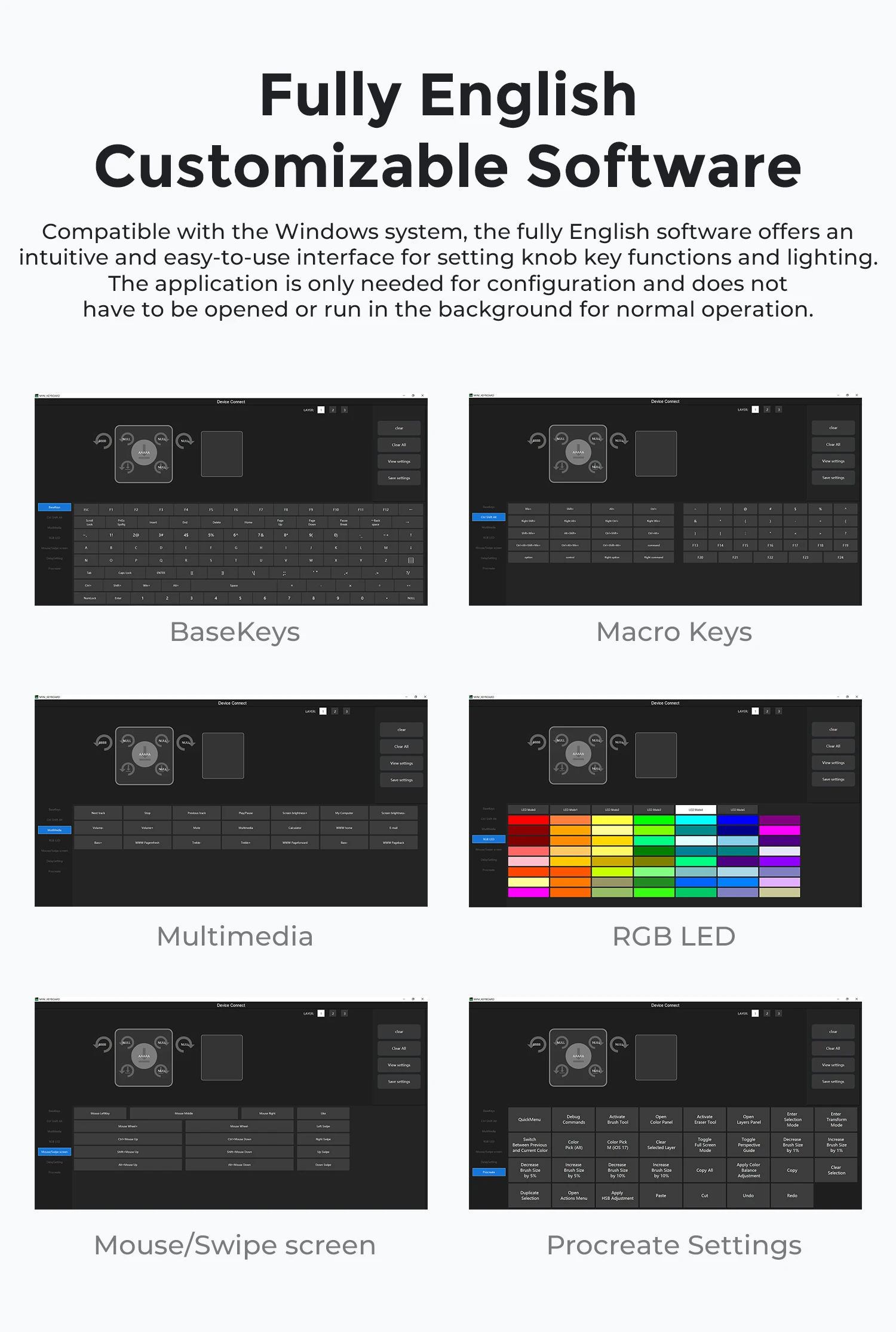
1、"Setting Software" : (03/2025 updated)
Windows Recommend==> The Newest Software (click to download)
Attention: Do Not Use this below one except you can't use by above one.
Old version Keyboard For Windows Software Download (click to download)
For Mac OS Software Download (click to download)
If you encounter any problems during the process of installing the software, using the software or setting up the keys, please contact our customer service team at sikaicase@sikaiglobal.com. Our support team will reply within 24 hours.
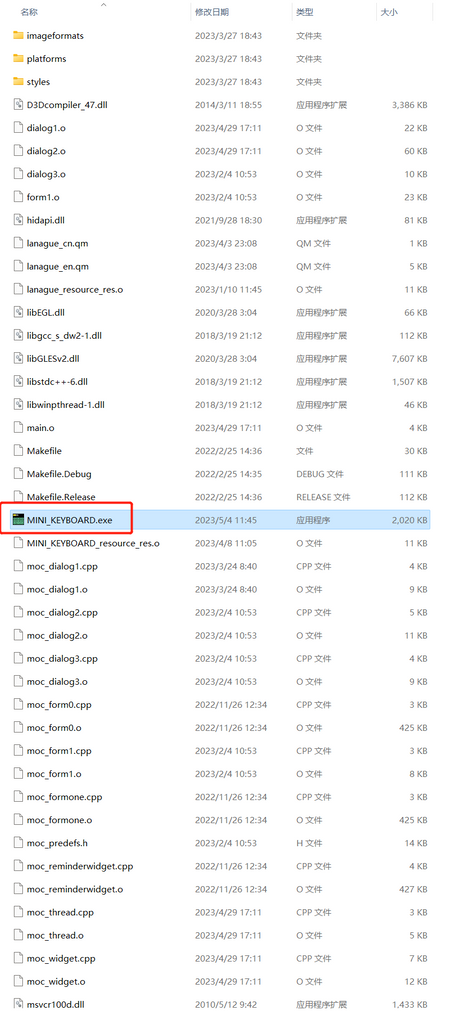
2、Open the application “MINI KeyBoard.exe” after downloading it.
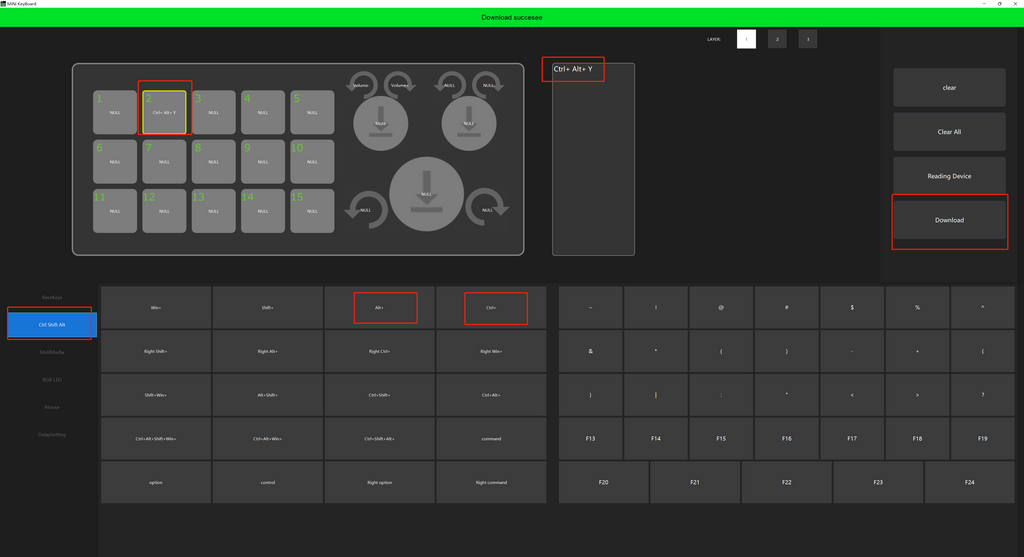
3、Set the Hot Keys you want.
For example, set a key as a shortcut language input: “hello”.
Select Key 1 in the upper-left corner, enter “hello” in the input box, and then click the download button in the upper-right corner. The setting is then saved to the keyboard.
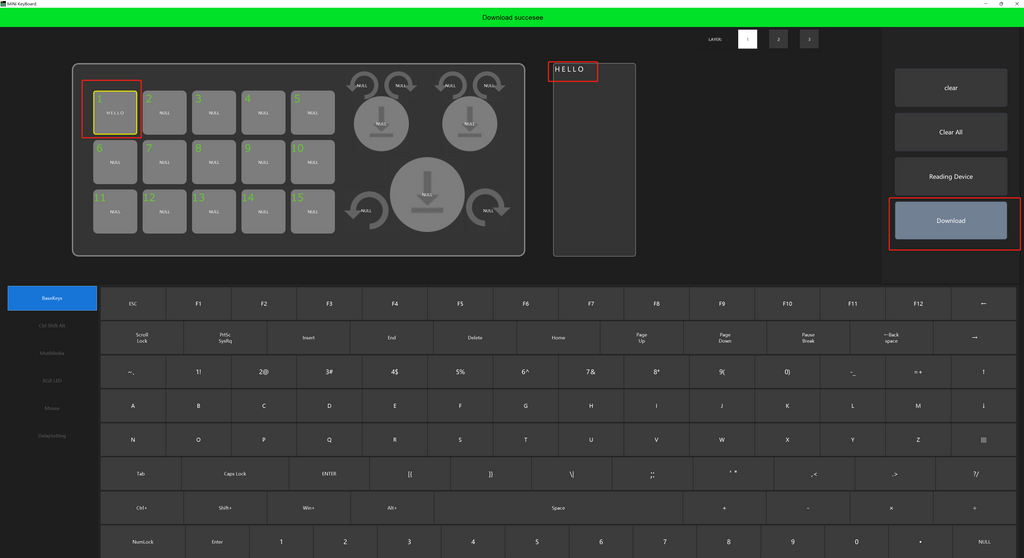
Press Key 1 on your mini keyboard and it will immediately type “hello” without entering each letter separately.
Follow the same steps to configure other keys and functions.

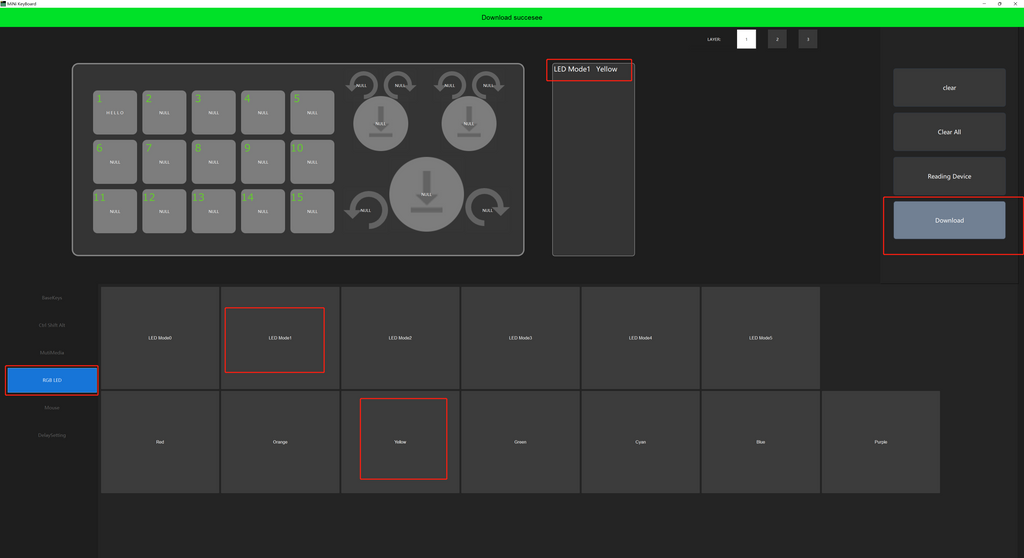
4. RGB Lights
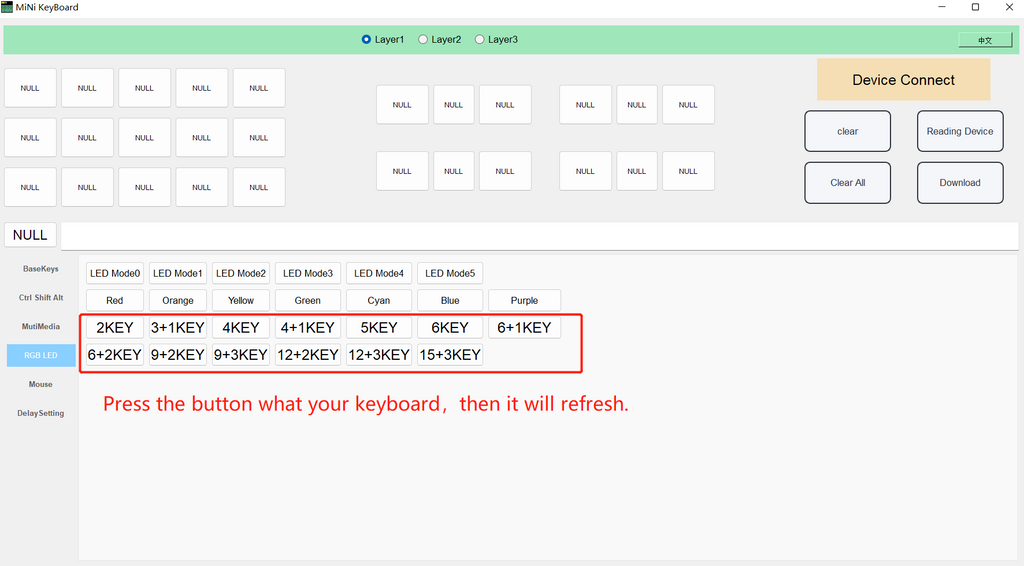
Available colors: Red, Orange, Yellow, Green, Cyan, Blue and Purple.
LED Mode 0: Turn off the light.
LED Mode 1: Steady on for all keys.
LED Mode 2: Fast glow from the first key to the last key.
LED Mode 3: Fast glow from the last key to the first key.
LED Mode 4: A single key lights up when pressed.
LED Mode 5: White light for all keys.
Note: The light will turn on only when the USB cable is connected.
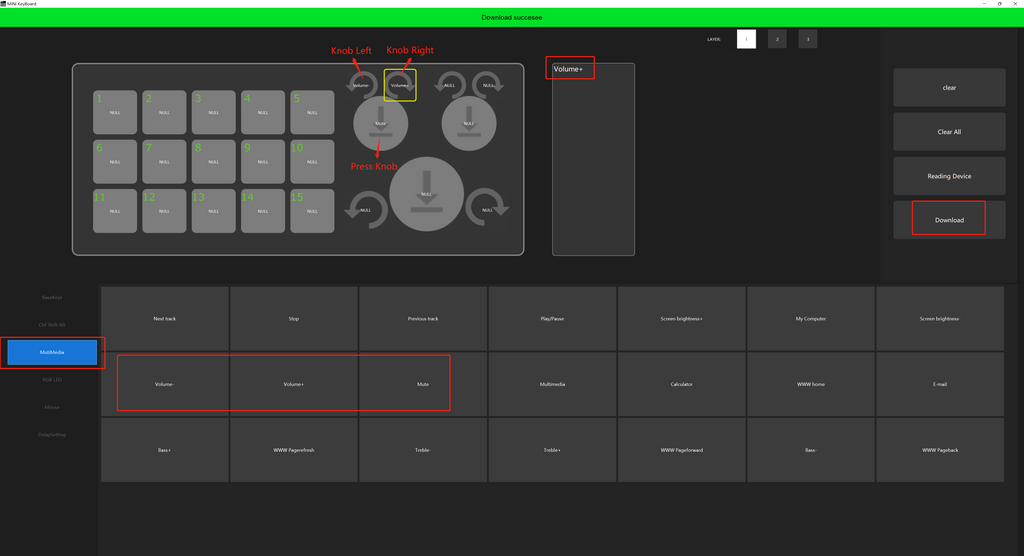
5. Knob Setting
6. Switch the Layer
Different layers can be configured with different functions.
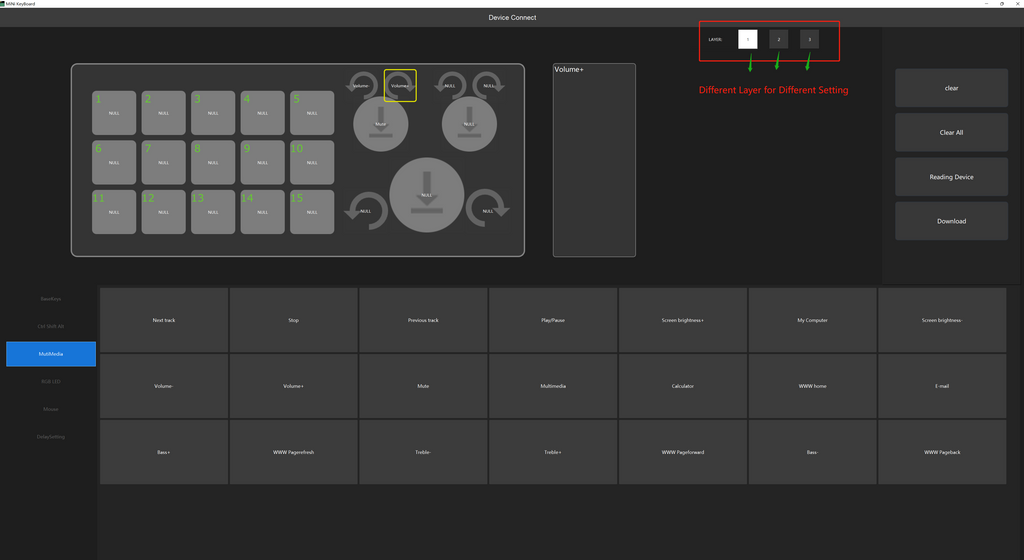
7. More Settings
One-key software launch: configure the shortcut key of the software on your computer and assign the same shortcut through the keyboard software.

For more questions, contact sikaicase@sikaiglobal.com for assistance.
NOTE: If your keyboard light cannot be fully lit, download the following refresh software: Software Download (click to download)
SikaiCase Mini Keyboards
Choose Your Programmable Mini Keyboard
Choose from compact 2-key shortcut pads through larger 15-key models with rotary knobs. Wired USB-C and wireless Bluetooth + 2.4G versions are clearly identified on the product page.

Popular Mini Keyboard Configurations
Select a compact layout for simple shortcuts or choose a larger model with rotary controls for editing, media control, work and gaming.


Not Sure Which Model to Choose?
Compare all current key counts, knob configurations, colors and connection types on one product page. Check the complete variant name before ordering to confirm whether the selected model is wired or wireless.
Shop All Programmable Mini Keyboards